 Keystone
Guides / Querying, scanning and PartiQL
Querying, scanning and PartiQL
Open a table from the sidebar, or press ⌘K to jump to any table on any connection. The builder on the left has three modes.
Query
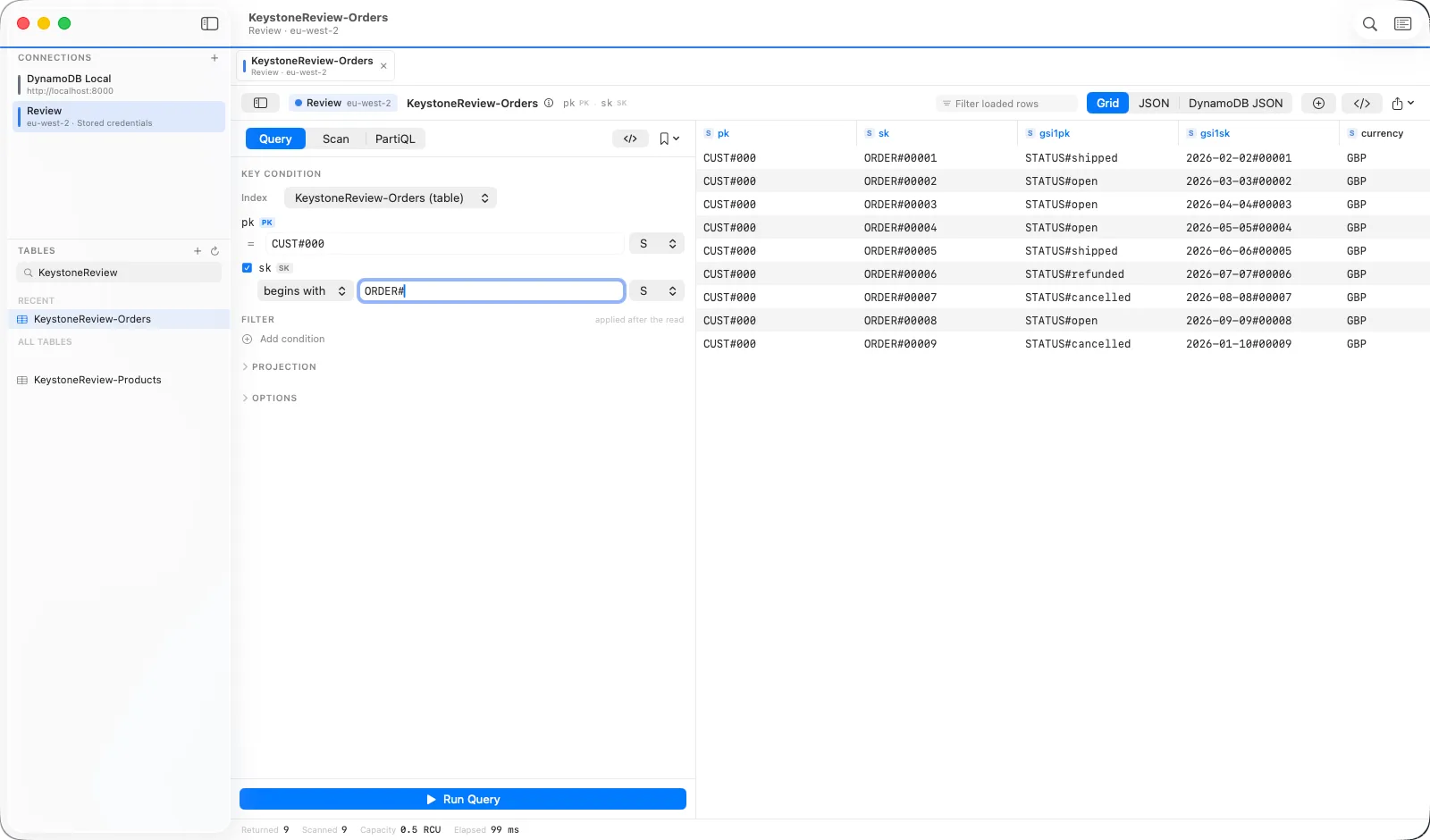
- Pick the table or an index. The key fields change to match.
- Enter the partition key value. Set the type beside it if it is not a string.
- Optionally, add a sort-key condition: equals, begins with, between, and the comparisons.
- Add filters if you need them. Filters are applied by DynamoDB after the read, so they narrow the result without reducing what you pay for.
- Press Run or ⌘R.
Scan
A scan reads the whole table (or index) in pages. It is the right tool for a look around and the wrong tool for a table with millions of items, which is why Keystone asks before an unfiltered scan of a large or production table. Parallel segments are under Options.
PartiQL
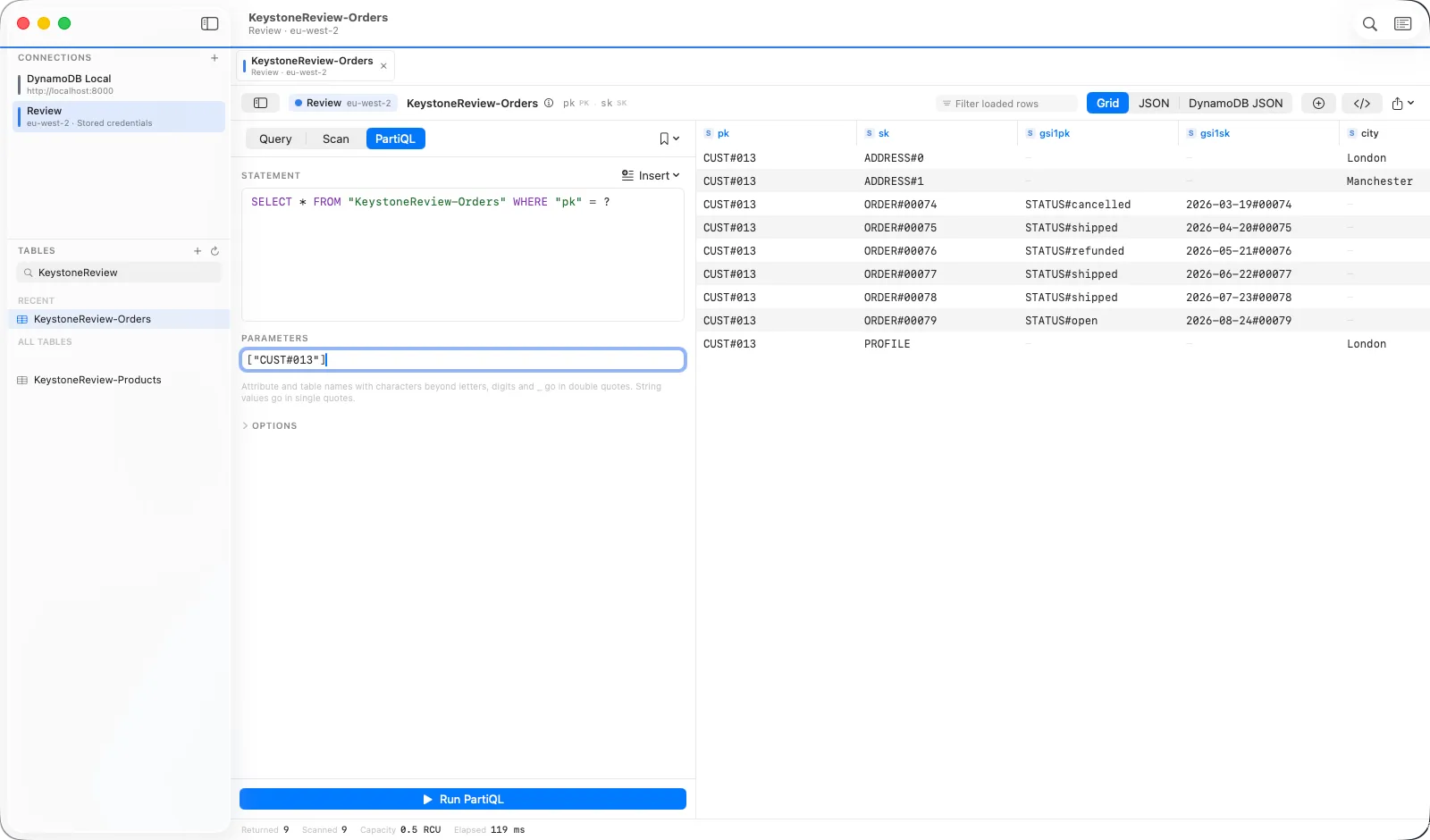
Type a statement. Insert offers templates with your table and key names filled in. Values for ? placeholders go in the Parameters field as a JSON array. Several statements separated by ; run as one batch, and each reports its own outcome. Statements that write data go behind the production lock like everything else.
Paging
Results arrive in pages of the size set in Settings (100 by default). Load Next and Load All sit under the grid; Load All asks first once you are past the threshold in Settings.
Raw expressions and generated code
The ‹/› button switches the builder to raw expression editing, with the name and value maps alongside. The code button in the header shows the same operation as JavaScript SDK v3, Python boto3 or the AWS CLI, updating live as you edit.
The operation log
⇧⌘L opens a log of every request the app has made this session: the operation, its exact request body, the duration, retries and consumed capacity. If something looks wrong, this is where to look first.
Saved queries and history
The bookmark menu saves the current query with a name. Put {{placeholders}} in values and they become parameters you are asked for when it is re-run. Every query you run is in the per-table history.