 Keystone
Guides / Working with results
Working with results
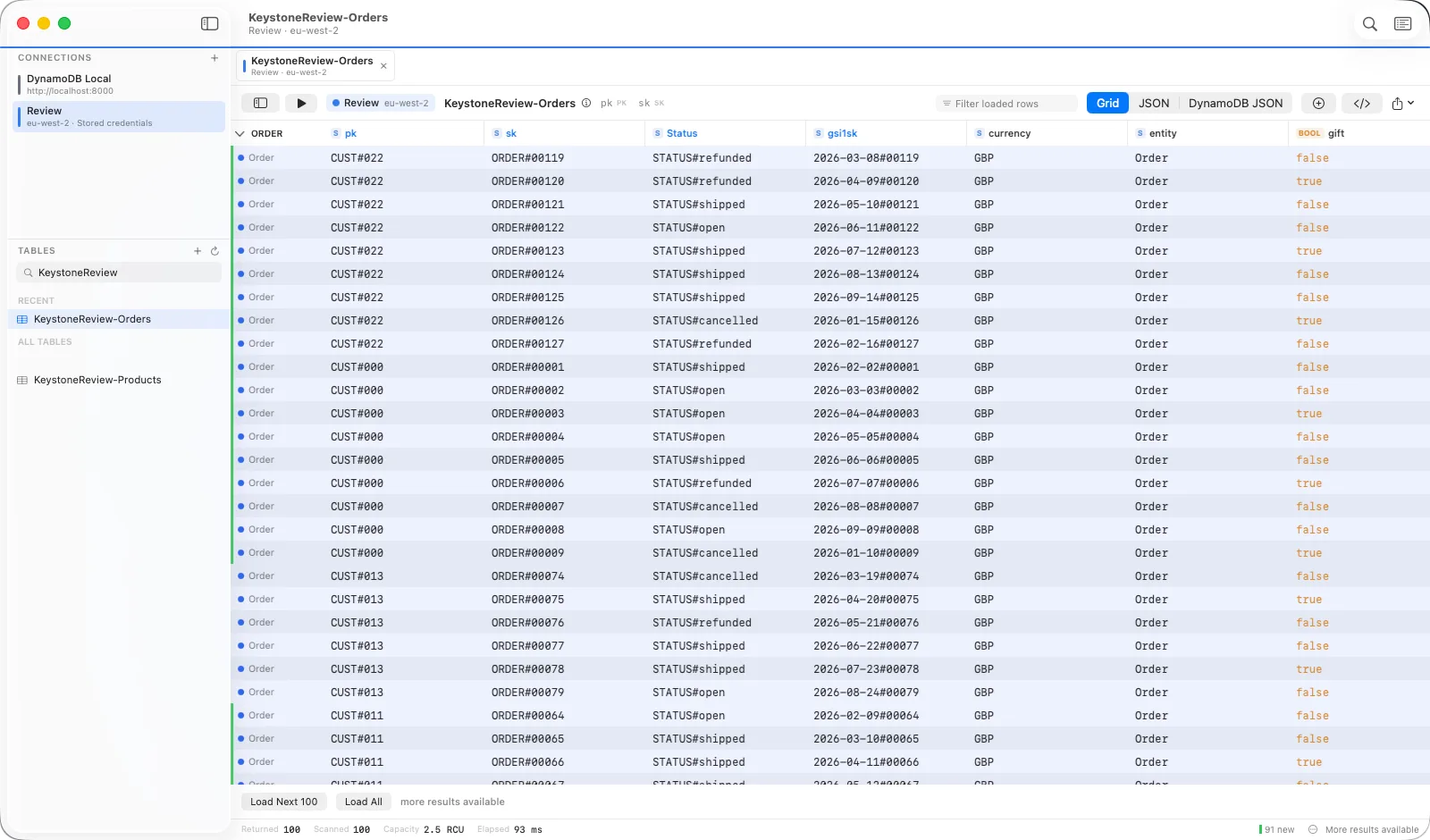
Columns
Columns come from the data. Key attributes are pinned on the left; right-click any header to pin, hide, fit or resize a column. The arrangement is remembered per table.
Filtering and sorting locally
The filter field in the header narrows the rows already loaded and never sends a request. Click a header to sort locally. Both are kept visually separate from the server-side filter in the builder, so you always know which one is doing the work.
Selecting and copying
Click to select, ⌘-click and ⇧-click to extend on the Mac; tap to toggle on iPad. Right-click for copy as JSON, DynamoDB JSON, CSV or TSV, or key only.
Editing an item
Double-click a row (or tap Open) for the item editor, which has form, tree and JSON modes. Saving shows you a diff first. By default Keystone sends a targeted UpdateItem with only what changed; turn on optimistic concurrency to guard against overwriting someone else's edit. Edits made this session can be reverted from the row's context menu.
Changed-row highlighting
Run the same query again and rows that changed since last time carry an orange bar on the left; rows that are new carry a green one. The counts appear in the status bar.
Views
Switch between Grid, JSON and DynamoDB JSON in the header to see the same result set as a document.