 Keystone
Guides / Setting up a connection
Setting up a connection
A connection is an AWS account plus a region plus a way of proving who you are. Add one from Connections → + in the sidebar. Keystone will validate it before saving by calling sts:GetCallerIdentity and listing tables, so a typo shows up here rather than on the first query.
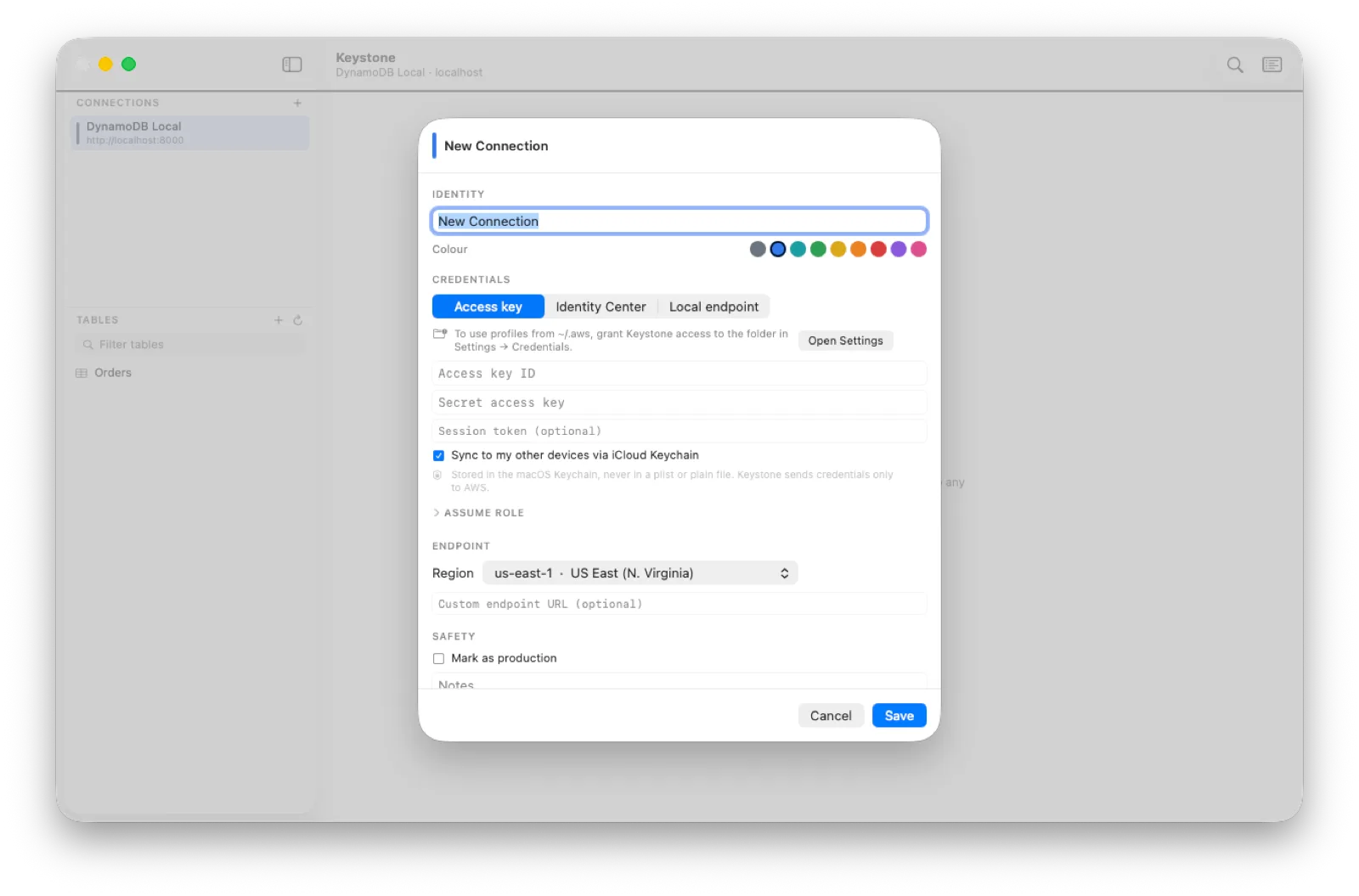
Access key
- Choose Access key as the source.
- Paste the access key ID and secret access key. If the key came from
sts:GetSessionTokenor an assumed role, paste the session token too. - Pick the region your tables live in. A table that seems to be missing is almost always a region mismatch.
- Optionally, add a role to assume. Keystone chains the assume-role call for you and prompts for an MFA code if the role requires one.
- Press Validate, then Save.
The key and secret are stored in the Keychain, never in a file. With iCloud Keychain on they follow you to your other devices; turn that off per connection if you would rather they did not.
Shared AWS profile (Mac)
If you use the AWS CLI, your profiles from ~/.aws/config and ~/.aws/credentials can be used directly, including assume-role chains, credential_process helpers and SSO profiles.
Because Keystone runs in the App Store sandbox it cannot see that folder until you point it there once: Settings → Credentials → Grant Access… and choose ~/.aws. After that the profile source appears in the editor and lists every profile it found.
IAM Identity Center
Choose Identity Center, enter your start URL and region, then press Sign In. Keystone opens the device-authorisation page in your browser; approve it and pick the account and role. Tokens are cached and refreshed for you.
Local endpoint
For DynamoDB Local, LocalStack or any compatible endpoint, choose Local endpoint and press Detect. Keystone probes the usual ports and offers what it finds; or type the URL yourself. Any credentials will do.
Marking a connection as production
Tick Production on any connection that holds data you cannot afford to lose. Production connections:
- open read-only: every write, delete and administrative change is disabled until you unlock writes for the session from the badge in the table header;
- always require the table name to be typed before a destructive operation;
- get a thicker colour bar in the window chrome, so you can tell at a glance which account you are looking at.
Unlocking lasts until you quit the app.
The connection colour
Each connection has a colour that appears in the sidebar, the tab, the table header and the window edge. Give production a red and staging a green and you will never confuse them.